

An LLM does use Apple unified memory on any M-series Mac. The model weights load into the single pool of RAM that the CPU and GPU share, and the GPU runs the maths through Metal, Apple's graphics API. The catch is a ceiling: macOS caps how much of that pool the GPU may claim, and the cap decides which models fit.
Size decides what you can load. Bandwidth decides how fast it answers. The rest of this article is those two numbers and what to do about them.
What Apple unified memory means for a local LLM
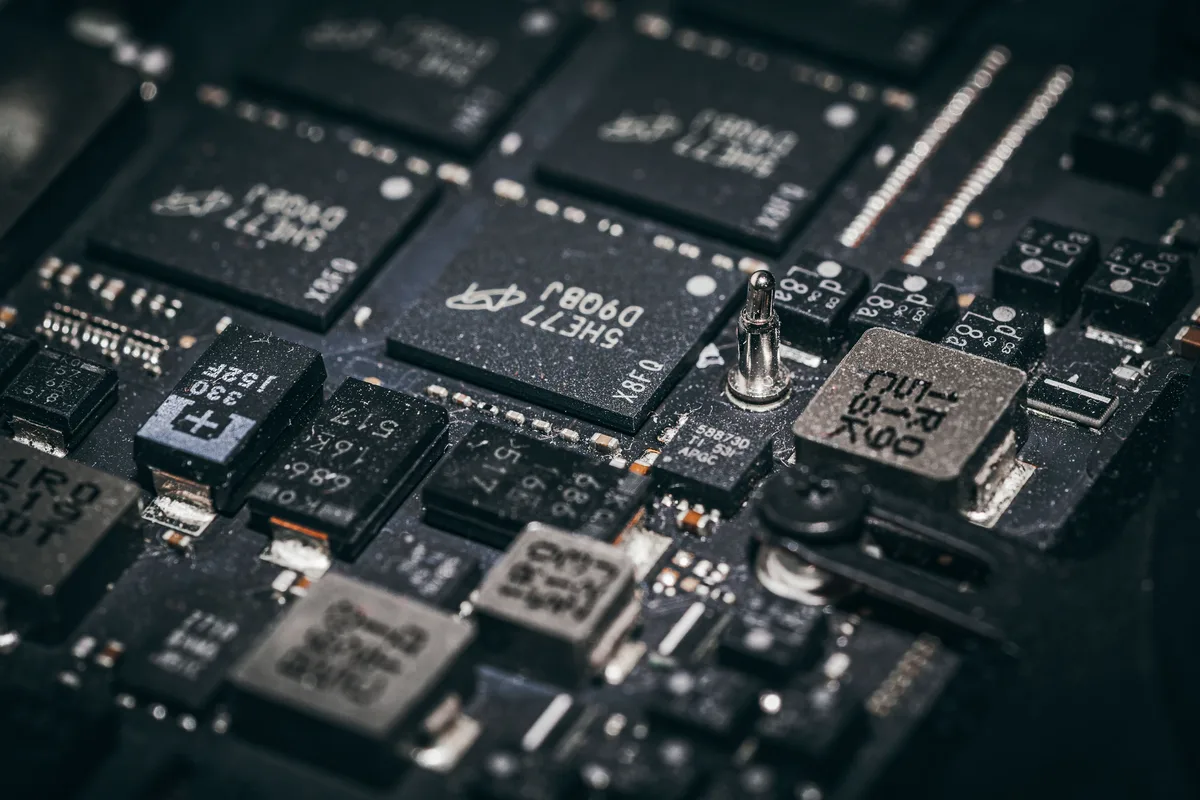
Unified memory is one pool of RAM for the whole chip. The CPU and GPU both read from it, so data the CPU loads is already where the GPU needs it.
A typical PC splits memory in two. Its graphics card carries its own memory, called VRAM, and anything the GPU works on must first be copied across from system RAM. For a local LLM, meaning a model that runs on your own machine with no API in between, that split is the whole budget: a 24 GB card holds 24 GB of model, however much RAM sits on the motherboard.
Apple's Metal documentation states the design plainly: Apple GPUs use a unified memory model in which the CPU and GPU share system memory, and the default storage mode for buffers is one both processors can access. A Mac Studio with 128 GB therefore offers something no consumer graphics card does, a GPU that can reach most of 128 GB.
That is why Macs keep turning up in local LLM threads. Nobody bought a laptop for its matrix multiplication in 2019, and yet here we all are.
How llama.cpp and MLX load a model into unified memory
The runtimes load the weights once and let the GPU work on them where they sit. There is no second copy in separate GPU memory, because there is no separate GPU memory.
llama.cpp, the C++ inference engine underneath many local tools, memory-maps the model file and hands those pages to Metal as shared buffers. Ollama wraps a similar engine behind a friendlier command line and uses Metal for GPU acceleration on Apple devices. On a Mac there is no driver to install before the GPU kicks in.
MLX, Apple's own array framework for machine learning, builds the whole programming model around the shared pool. Its arrays live in unified memory, and you choose a device per operation instead of moving data. The CPU and GPU can each take the work they are better at while pointing at the same array.
For the expert reader, the practical upshot is zero-copy loading. With memory mapping on, the file pages and the GPU buffer are the same physical memory, so a 40 GB model costs about 40 GB. On top of that sits the KV cache, the stored attention state for every token of the conversation so far.
The GPU memory limit macOS sets, and how to raise it
The GPU cannot take the whole pool. macOS reserves memory for itself and limits how much the GPU may wire down, meaning lock in place so it can never be paged out.
Metal reports that ceiling as recommendedMaxWorkingSetSize, and inference engines treat it as their budget. It scales with installed memory, and on smaller machines it bites early. In one llama.cpp discussion on memory consumption, a 24 GB MacBook Air had its GPU limit at 16 GB by default, and a 32-billion-parameter model at 4 bits failed to load until the limit went up to 20 GB.
The limit is a kernel setting called iogpu.wired_limit_mb, and you can change it from Terminal:
sudo sysctl iogpu.wired_limit_mb=20480Treat this setting with care. The value is in megabytes and it resets when the Mac restarts. Set it too close to total RAM and macOS starves, which shows up as heavy swapping or a machine that stops responding. Leave several gigabytes for the operating system and the apps you keep open.
Memory bandwidth and LLM optimization on a Mac
Memory size decides which models fit. Memory bandwidth, the rate at which the chip can read that memory, decides how fast they talk.
Generating one token means reading every active weight once. Divide bandwidth by model size and you get a ceiling in tokens per second. A 7-billion-parameter model at 4 bits is roughly 3.8 GB, so a chip moving 400 GB per second tops out near 100 tokens per second before any other overhead.
The llama.cpp Apple Silicon benchmark thread shows how closely real chips track that rule. Token generation for the same 7B model at 4-bit quantisation:
| Chip | Memory bandwidth | Tokens per second |
|---|---|---|
| M1 | 68 GB/s | 14.2 |
| M2 Pro | 200 GB/s | 37.9 |
| M3 Max | 300 GB/s | 56.6 |
| M4 Max | 410 GB/s | 70.0 |
| M2 Ultra | 800 GB/s | 94.3 |
Speed climbs with bandwidth almost in step until the Ultra, where other overheads start to show. The same thread measures the 16-bit version of that model at under 60 percent of the 4-bit speed on every chip listed, and closer to a third on most. That makes quantisation, storing weights at lower precision, the first LLM optimization to reach for on a Mac.
Buying a Mac for its memory and ignoring bandwidth is buying a bigger fridge with a smaller door. Everything fits, and dinner takes a while.
How much unified memory a local LLM needs
Budget the weights first, then the conversation. Weights in gigabytes are roughly the parameter count in billions, multiplied by bits per weight, divided by eight.
| Unified memory | What fits comfortably at 4-bit |
|---|---|
| 16 GB | 7B to 8B models |
| 24 GB | Up to 14B; 32B only with the GPU limit raised |
| 64 GB | 70B models, at about 40 GB of weights |
| 128 GB | 70B at 8-bit, or larger mixture-of-experts models at 4-bit |
Then add the KV cache. It grows with context length, so a model that loads fine at a 4,000-token context can run out of room when you ask for 32,000. If you plan to feed it long documents, keep several gigabytes spare.
Memory left free is also the only Mac RAM that costs nothing, a rare experience given Apple's upgrade pricing. Our step-by-step guide to running an LLM locally covers installing a runtime and choosing a first model once you know your budget.
When a Mac makes sense for a private LLM
A Mac is the cheapest route to running a large model in private. It is rarely the fastest route to running a small one.
For a private LLM, meaning one where prompts and documents never leave hardware you control, the Mac's advantage is capacity per dollar. A single desktop with 128 GB of unified memory holds a 70B model at 8 bits in one quiet box. Matching that with graphics cards takes several of them and a power supply sized for a small kitchen.
The trade-off is throughput. A discrete GPU with fast VRAM will outrun a Mac on any model that fits in its memory, and it processes long prompts faster because that stage leans on raw compute. If your models are small and your prompts are long, the gaming PC wins.
Also weigh whether you need your own model at all. Deciding when to build an LLM of your own is a separate question from where to run one, and most teams get further with a hosted API.
Before you buy or configure a Mac for local models, run through this list:
- Size the model: parameters times bits, divided by eight, plus a few gigabytes for the KV cache.
- Read the GPU memory limit your runtime logs at startup.
- Raise
iogpu.wired_limit_mbonly with headroom left for macOS. - Choose the chip for bandwidth once the memory is settled.
- Start at 4-bit quantisation and move up only if quality demands it.
If you want to see why every token costs a full pass over the weights, LLM Systems Engineering explains the inference loop from tokens to transformer layers. For other titles, see our ranking of the best books on LLMs.