
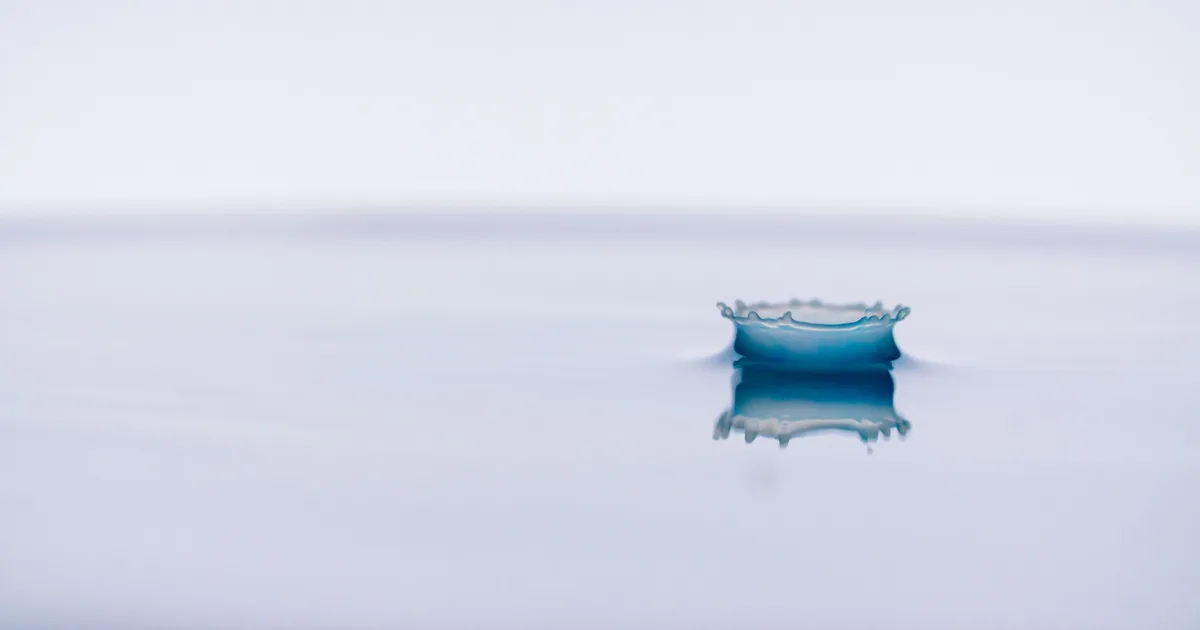
Grok AI prompts control speed and slow motion through words alone. Grok Imagine's video API has no setting for playback speed or frame rate, so the pace of a clip comes from how you describe the shot. For slow motion, open with "extreme slow-motion macro shot" and name one small physical action worth slowing down. For speed, describe what speed looks like on camera, such as motion blur and camera shake.
This guide covers the wording that works and a set of prompts you can copy, then how clip length and pinned frames change the pace. Everything here was checked against xAI's documentation in October 2026. Grok Imagine changes quickly, so confirm the details before you build a pipeline on them.
Where speed lives in Grok AI prompts
Speed in a Grok video is a property of the prompt. The model reads your description, decides how much happens, and spreads that over the length of clip you asked for.
xAI's video generation documentation lists the settings you control, clip length and framing among others. Duration runs from 1 to 15 seconds, with 8 as the default. There is no frame rate field and no speed multiplier anywhere in the request.
On grok-imagine-video-1.5 and its cheaper Lite version, text-to-video also runs in two steps under the hood. The model renders a first frame from your prompt, then animates it. The first frame fixes the scene, which leaves the motion words to carry the pace.
That gives you two levers. Words set how fast the action appears to move. Duration sets how long the model has to play it out. Ask for one wave breaking over 12 seconds and the model has to fill the time, so it either slows the wave or adds more waves. Saying which one you want is your job.
It is a strange kind of film set. You are the director, and you are not allowed to touch the camera, so every instruction has to be shouted from across the room.
Slow motion prompts that hold up in Grok Imagine
Real slow motion comes from the camera. A high-speed camera records far more frames per second than the usual 24, and playing them back at 24 stretches the moment out, as StudioBinder's explainer on slow motion describes. Grok has no camera to speed up. It generates frames that look like high-speed footage, so the prompt has to describe what that footage looks like.
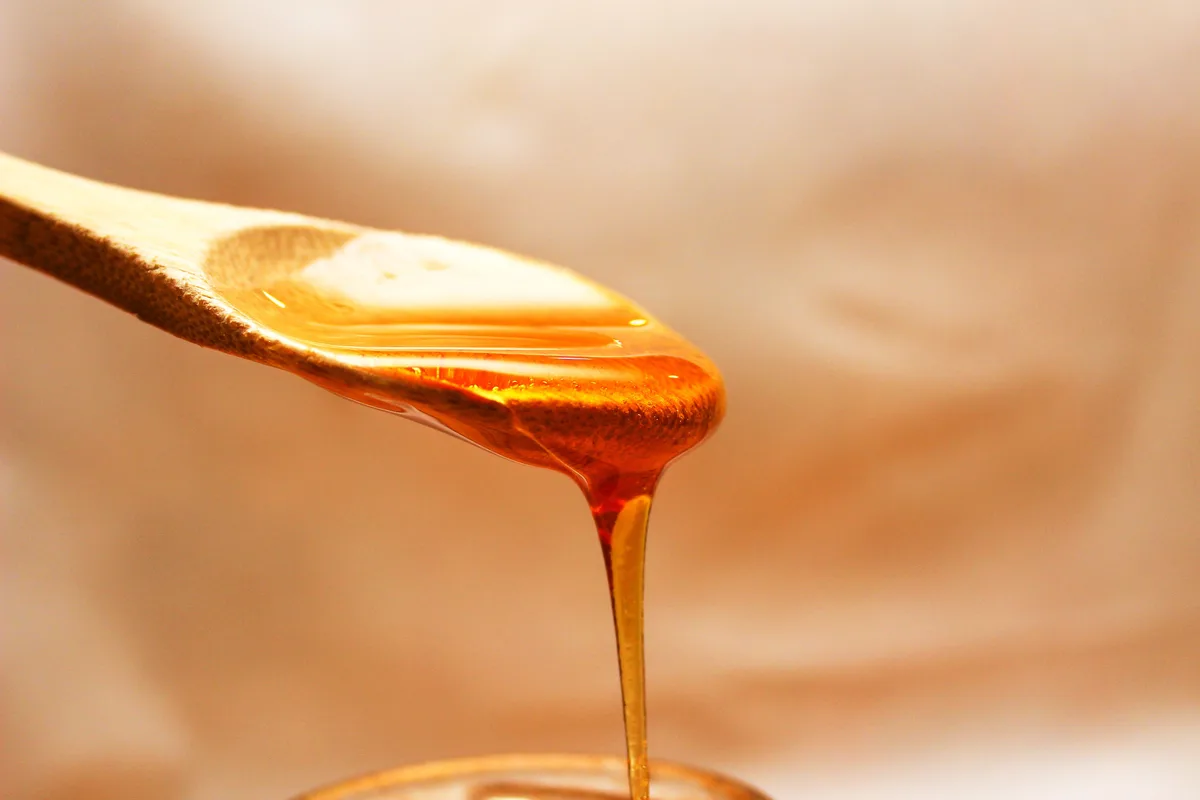
xAI's own showcase has a good template. Its food example opens with "Extreme slow-motion macro shot" and then describes honey pouring from a wooden dipper onto pancakes, folding over itself and dripping down the edges, in an 8-second clip. Three habits make it work:
- The pace instruction comes first, so it frames everything after it.
- The subject rewards slowing down. Thick liquid and splashing water carry detail the eye misses at full speed.
- The action is small and physical. A ribbon of honey folds over and drips, and the model knows how that behaves.
Pick moments with a lot happening inside a fraction of a second, such as a balloon bursting or a dog shaking off water. A person walking down a corridor gives the model nothing to reveal. You get eight seconds of someone apparently wading through invisible porridge.
Extreme slow-motion close-up: a water balloon bursts against a
fence post, the rubber skin peeling back while the water keeps the
balloon's shape for a split second, then collapses and sprays.
Bright afternoon sun, shallow depth of field. Only the water and
the rubber move. Sound: a soft pop, then dripping.
Grok AI prompts for speed and time-lapse
Speed has several looks, and each needs different words.
- Time-lapse squeezes hours into seconds. xAI's image-to-video example asks for "a slow and serene time-lapse" from a still landscape, and its Tokyo crossing prompt ends with "Slow time-lapse feel." Racing clouds and shifting light are the cues to name.
- Fast action keeps real time and makes the subject move hard. xAI's car example asks for the car to cross the city "accelerating aggressively."
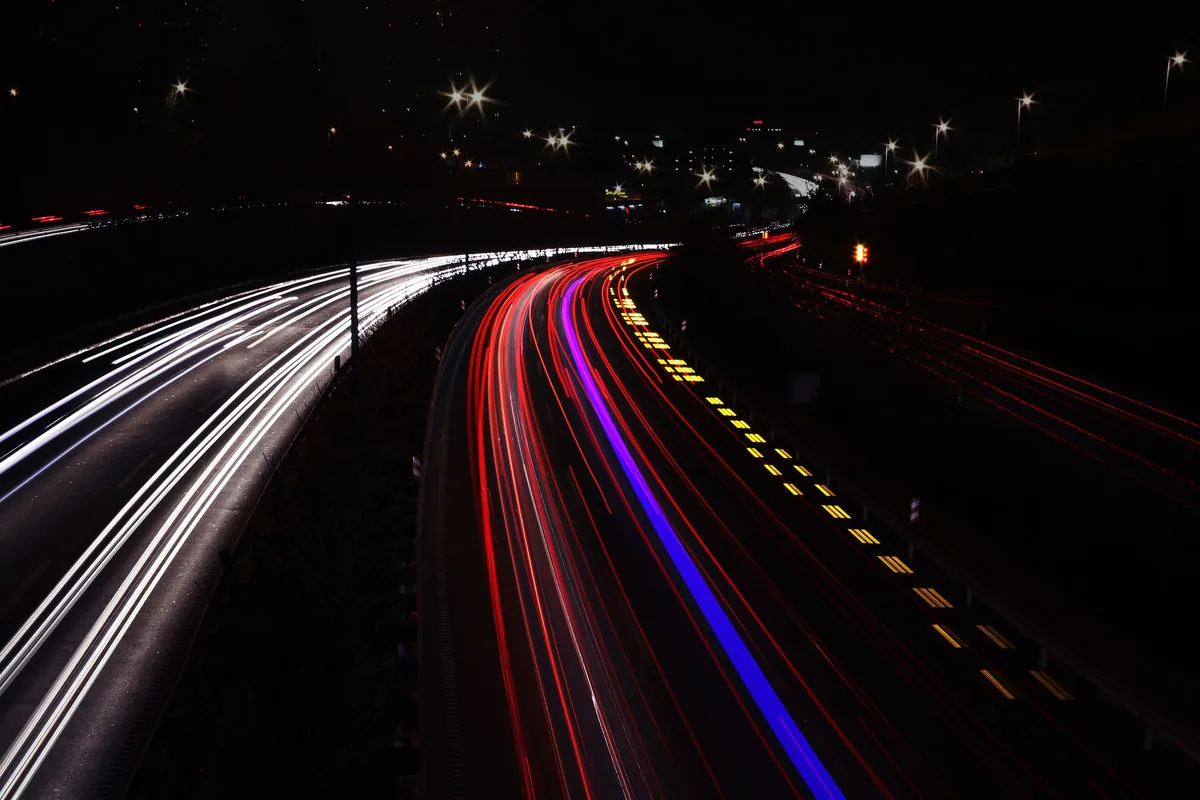
- Felt speed comes from the camera. xAI's dragon-riding prompt asks for natural motion blur and camera shake from the wingbeats.
The camera trick is the one to remember. A locked-off camera on a fast subject tends to read slower than a shaky, blurred camera on a slower one, because viewers judge speed from what smears past the edges of the frame.
Low tracking shot beside a cyclist sprinting down a wet mountain
road, handheld action-camera feel, strong motion blur on the trees
and the road edge, slight camera shake, spray kicking up from the
tyres. The rider stays sharp in the centre of the frame.
Sound: wind roar and tyre hiss, no music.
Sped-up footage, the old undercranked look where people scurry like silent-film extras late for a train, is the least predictable request. Name it outright with words like "sped-up footage" and "fast jerky steps," and expect to reroll a few times.
Generative AI prompt examples for every pace
One pace per clip is the safest rule. The table pairs each pace with opening words and a subject that suits it, so you can swap in your own scene.
| Pace | Open the prompt with | Subject that suits it |
|---|---|---|
| Extreme slow motion | Extreme slow-motion macro shot | A drop hitting milk, a crown of splash rising |
| Gentle slow motion | Slow-motion shot, smooth and steady | Hair lifting in the wind as someone turns |
| Real time | Handheld shot, natural pace | A barista pouring latte art |
| Fast action | Fast tracking shot, strong motion blur | A skier carving down a steep slope |
| Time-lapse | Locked-off time-lapse | Clouds racing over a city at dusk |
| Sped-up | Sped-up footage, 4x speed | Commuters crossing a station hall |
A speed ramp, where real-time action drops into slow motion, is two paces in one clip. Write it as two clearly ordered beats, or split it. The older grok-imagine-video model can extend an existing clip from its last frame by 2 to 10 seconds, so you can generate the real-time half and prompt the extension in slow motion.
For more on structuring prompts before and after a rewrite, see our AI prompt examples with before and after versions. If you also use Grok for research, the same habits apply in our guide to Grok AI search prompts.
Use an AI image prompt and pinned frames to control pace
The most reliable way to control pace is to fix the frames yourself and let the model fill in the motion between them.
Image-to-video turns a still into the first frame, and the output keeps that image's aspect ratio. A strong AI image prompt for the still does half the work, and our guide on creating an AI prompt from a photo covers how to describe one precisely.
On grok-imagine-video-1.5, the video overview adds two controls. A last frame pins where the clip ends, and up to four keyframes pin images at exact timestamps on a one-third-second grid. Pace then becomes arithmetic. A ball pinned in the air at 1 second and on the ground at 2 seconds falls quickly. Pin the same two frames at 2 and 10 seconds and the fall has to stretch out. Passing the same image as first and last frame makes a loop.
Test pace on cheap settings first. xAI prices video per second, so a 10-second test costs $0.20 on grok-imagine-video-1.5-lite at 480p and $2.50 on grok-imagine-video-1.5 at 1080p. Lock the pace at low resolution, then render the final once.
When the speed comes out wrong
Grok's video API has no negative prompt field, so state what must stay fixed in plain sentences. xAI's own prompts do this with lines such as "Only the camera moves" and continuity notes saying that nothing appears or changes shape.
- The clip plays at normal speed: move the slow-motion phrase to the front and cut every action but one.
- Objects melt or morph during the slow part: add a continuity line naming what keeps its shape.
- Too much happens: lengthen the clip or remove actions. Crowded prompts force the model to hurry.
- Motion looks choppy: ask for smooth, stabilised movement. Frame-rate words are read as style, which is why xAI's stop-motion example asks for a "slightly choppy frame rate" on purpose.
- The second half drifts to a different speed: pin a keyframe where the pace should hold.
The short version: one action per clip, with the pace words up front. Prompting for video follows the same principles as prompting for text, and AI Prompt Engineering covers both, image and video generation included. Get those right and the porridge stays in the kitchen.